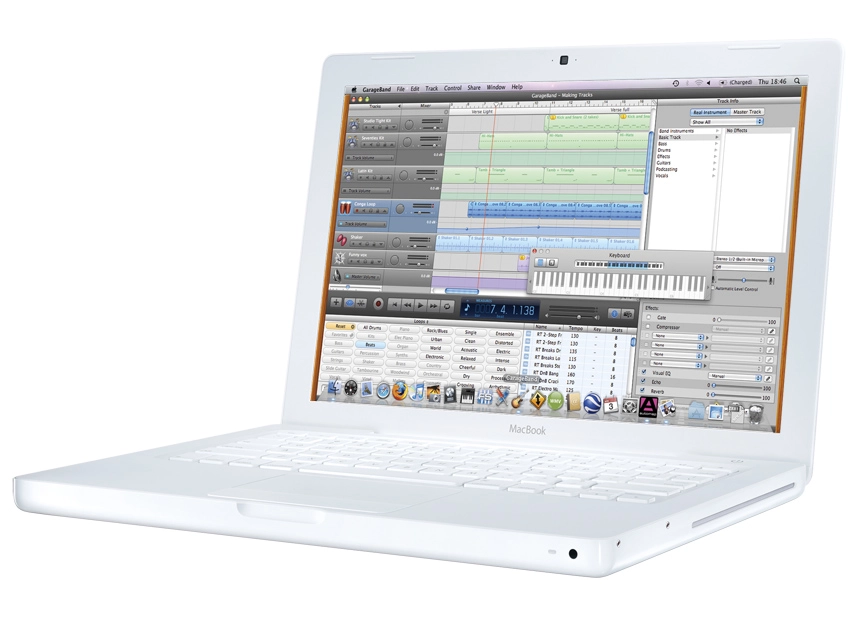
GarageBand is arguably the most user-friendly music-making application on the market, but unlocking all of its secrets can still take time. To help you speed up the learning process, MusicRadar has put together an exhaustive A to Z guide to the software - we'll cover both basic and advanced features and explain how they all work.
The guide is divided into four parts, and we'll kick off, naturally enough, with part 1, which covers the letters A-G. Part 2, part 3 and part 4 are also available.
A is for Apple
GarageBand is Apple's entry-level music-making application. Available as part of the company's iLife suite - it also ships with all new Macs - it lets you create professional-sounding songs, instrumental pieces, remixes… anything you can think of.

GarageBand is what we call a sequencer, or, to be posh, a Digital Audio Workstation (DAW). DAWs let you record audio tracks of your own via a microphone, while also providing access to a whole series of internal sounds that you can record with. GarageBand is no different - it's a virtual recording studio simply awaiting your input.
If you don't have the most up-to-date version of iLife, it's available for a mere £55, giving you music, film, photography and DVD applications that will help you fulfil all your creative dreams, whatever they may be.
B is for bitcrusher
Any track within your GarageBand arrangement can be passed through a bitcrusher, as can your whole mix. The bitcrusher is one of GarageBand's many effects processors. It takes your pristine audio and deliberately lowers its resolution so that it becomes retro, lo-fi, glitchy and crunchy. It's a really popular effect, favoured by experimental electronica and rock producers alike, as it adds grit, a bit like distortion.
Of course, if it's distortion you're after, GarageBand does that too, which will be of particular interest to guitarists.
GarageBand also comes with an extensive range of amp simulators. Simply connect your guitar directly to an audio interface and record a 'clean' signal, then try a range of virtual guitar treatments and choose your favourite.
C is for compression
Compression is what's known in the industry as a 'dynamics processor'. This is because it affects the dynamics, or volume, of a particular instrument, track or note. Compression can be used to even out dynamics by reducing the volume of over-loud parts, while boosting parts that are too quiet. The advantage of compression is that it helps maintain a sense of balance by keeping recorded parts 'level' in the mix.
This can also be achieved with automation. GarageBand's automation tracks let you literally draw volume changes so that you can make parts fade in or out, or push up or reduce the volume of a particular note or phrase in a track. Automation isn't restricted to volume, either - you can also easily automate panning (the balance between the left- and right-hand sides of any given track). If you want to get fancy, you can even automate individual parameters from your effects plug-ins.
D is for delay
Any sound sent through a delay will produce those echoes you'll have heard so many times on your favourite records. GarageBand offers two different delays for every track in your song.
The first is a Master Delay effect to which every track has access. Once you've written the part you want and opened up the Effects pane in the bottom-left corner, the Master Delay slider enables you to set the amount of echo you want for the currently selected track.
If you want a second, more track-specific effect, you can assign one of the empty effects slots to Track Delay, which you can then open up and modify. You can choose the speed of your delay, how loud and bright each echo will be, and lots of other parameters besides.
E is for effects
All of the processes described above are known as effects treatments. Effects are plug-ins through which your sounds can pass, and by sending a track through a particular effect, you'll change the way it sounds.
GarageBand's effects include an individual 'chain' per track, which means that for every musical part of your arrangement, a unique set of effects can be put together. Once you've blended all the parts of your arrangement together, all the tracks are sent to GarageBand's Master Track. Even more effects can be set up here, which will affect the whole of your mix.
F is for F major
How's your music theory? With some software, not knowing your majors from your minors can be a bit of a problem, and not being able to input notes without having a keyboard attached (which requires at least a bit of playing ability) can be a serious drawback.
Not in GarageBand. For starters, you're asked to choose a tempo and a key for your song when you first load a new arrangement; the reason for this is that when you then drag and drop audio from the Loop Browser onto the Arrange screen, it will automatically play back at the right speed and pitch. So, getting chanting monks to do their thing over a thrash metal guitar loop is child's play.
G is for guitar
GarageBand is a very friendly program for wannabe guitar heroes. Quite aside from the mountain of guitar grooves over which you can jam solos to your heart's content, recording grooves and licks is easy.
Using your computer's audio input (or an inexpensive USB or FireWire audio interface), you can lay down endless takes of your performances on Real Instrument tracks. You can loop round a particular section of your arrangement, recording take after take before choosing the best bits. You don't need loads of outboard gear like amplifiers or effects pedals, either, as GarageBand has a stack of amp simulators in its Effects section. Back in the Loop Browser, you can put together a whole backing track with drums, bass and even keyboard loops if you like.