It might not be a complex program, but GarageBand is certainly full of features. Because there's so much to cover, MusicRadar has split its A to Z guide into four parts, of which this - covering the letters N to T - is the third.
Part 1 and part 2 and the concluding part 4 are also available.
N is for Normalise
If you're working with Software Instruments, the notes you record onto GarageBand's Arrange page are stored as little pieces of data, which in turn trigger notes. Each piece of data contains information about how loud a note is, where it's been played and how long it lasts for.

If, on listening back to a recording, you want to change any of that information, you can. If a note isn't loud enough, for instance, you can click on it in the Instrument Editor window at the bottom and increase its volume using the slider. Moving the slider all the way to the right sets it to maximum volume, which is referred to as 'normalising'. If you want to make a note longer or shorter, simply grab the end of its 'bar' in the Edit window and drag the end of the note backwards or forwards until it's the right length.
O is for One window
One of the main joys of GarageBand compared to some of its rivals is that it doesn't bury its many different functions in separate windows - everything's displayed within a single screen, which keeps things simple. If you want to open the Loop Browser, if folds out from the bottom of the screen, while the Track Info pane does something similar on the right-hand side when you're setting up sounds or assigning effects.
You can close these side panels down if you want extra screen space for the Arrange window but, crucially, when you open something, it won't appear in a new pop-up window, which means it won't get lost or disappear the moment you click on something else. This approach has worked so well within GarageBand that it's even been adopted for its 'big brother' program, Logic Pro.
P is for Plug-ins
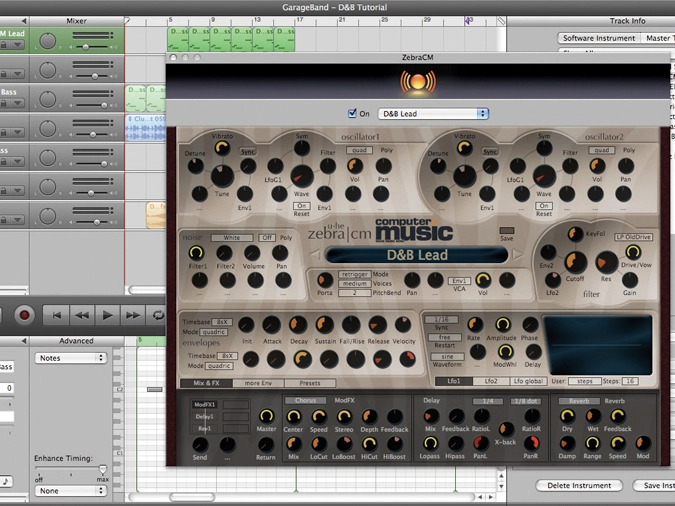
Plug-ins are pieces of software that are available separately from your DAW application and can be used to expand the potential of your setup. Plug-ins tend to fall into two categories: instruments and effects. Instruments are things like synthesizers, drum machines and samplers, while effects include compressors, EQs, reverbs, delays and many more.
GarageBand can run any Audio Units plug-ins you have installed on your Mac (Audio Units is a standard developed by Apple). Far from being a basic, standalone program, it can be expanded as much as you like.
Q is for Quality
The Beatles made records over 40 years ago with systems that were primitive compared to today's kit. However, that didn't stop them making brave, iconic music that prioritised musical ideas over the technology on which it was made.
GarageBand is an entry-level but extremely high-quality sequencer, regardless of your musical leanings. It can render CD-quality mixes, and while it offers help if you need some at first, it's also ready to let you take complete control of a session if you prefer. Make no mistake: with GarageBand, you can make excellent-sounding music.
R is for Record
The key to getting your ideas into GarageBand lies in the Record button. Once you've chosen an instrument and jammed some ideas, it's time to record them.
A single click is all that's required to make GarageBand leap into recording life, with a red bar appearing on the track you've selected showing you that your performance is going in. If you're recording a Software Instrument, you'll see little lines appear, indicating notes; if you're recording audio, you'll see a graphical waveform of your part instead.
If you're in the mood for a jam to see which ideas work best, simply put GarageBand into Cycle mode before you record. Then the program will loop round a particular part, creating a take for each attempt. Simply compile your favourite bits to create the perfect take.
S is for Share
Once you've created your masterpiece, why not share it with the world? Sharing files is easy, and you can do it in a variety of ways.
Once you've finished your track, you can send it directly to iTunes so that you can start building a library of your own music. Alternatively, you can save it as a ringtone ready for use in your mobile.
The podcasting potential of GarageBand means that you can also send your latest podcast directly to iWeb for use on your website, or you can export your song as an MP3 or AAC file. If you choose not to compress the file to either of these formats, you'll end up with a CD-quality AIFF file, or you can save your song as an archived project via the File menu, which means all files and instruments can be transferred to another computer.
T is for Typing
Hang on, GarageBand isn't a word processor, is it? Well, no, but that's not to say that your computer's keyboard can't act as a rather handy note input device. If you don't have a dedicated MIDI keyboard controller, don't panic - GarageBand is ready to let your computer's keyboard step into the breach. You can use either the basic Keyboard or more advanced Musical Typing options to let you record notes and phrases directly from the QWERTY keyboard - particularly great for laptop users who don't want to lug a keyboard around wherever they go. If you're using the Musical Typing keyboard, you can even add pitch bend and sustain information!
T is also for 'takes'. Remember that there are layers of recordings that you can make on any track. To record multiple takes, simply drop into Cycle mode and play away.