


Native Instruments Traktor DJ for iPad
Native Instruments has released Traktor DJ - an iOS DJing app that NI has branded “the first professional DJ app for iPad.”
The app - which is available now from the App Store at a price of £13.99/$19.99 - syncs bi-directionally with Traktor Pro, meaning that track information such as cue points, beat grids and BPM can be shared back and forth between the two applications. The app also integrates fully with the iPad’s iTunes library, automatically analysing any music stored on the device ready for loading.
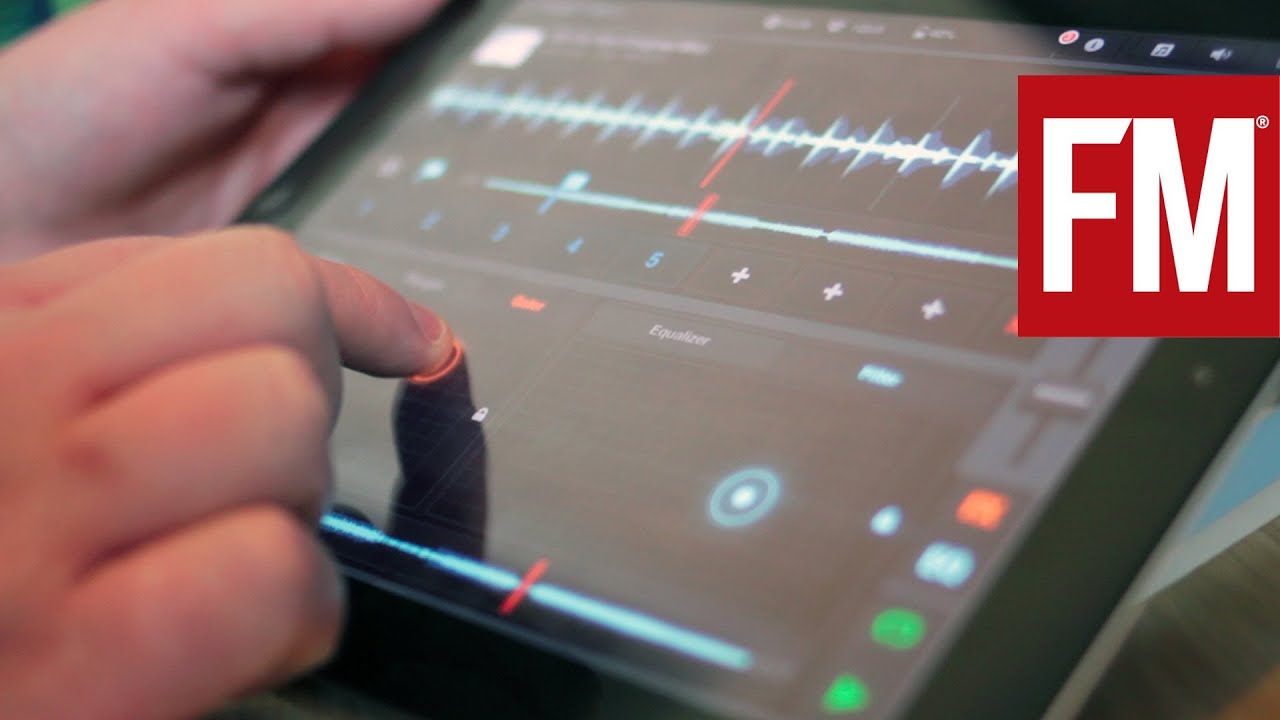
Traktor DJ’s interface should look familiar to Traktor Pro users, as it’s effectively a stripped back version of its bigger sibling - although slightly redesigned to make use of the iPad’s touchscreen. The app features two waveform-style decks, each with pop-up windows featuring a three-band EQ and effects pad that can be switched between eight different DJ effects.
The app introduces a new Freeze Mode and touch-triggered track looping, allowing users to grab sections of a track and loop and retrigger bars on the fly. Other feature highlights include beat grid analysis and adjustment based on Traktor’s beat engine, plus a Recommendation Engine that can suggest tracks based on tempo, timbre and key analysis.
Traktor DJ can be switched to split output mode for monitoring using a headphone splitter, or can be connected to NI’s Traktor Audio 6 and 10 interfaces via Apple’s Camera Connection Kit. The app isn’t compatible with any of NI’s controllers, but - because of its touchscreen-centric design - use of a MIDI controller isn’t necessary.
So, how is the app in use? What level of DJ is going to get the most use out of it? And is it worth the price tag? Read on for our thoughts on the app after our first week of use.
Also make sure you check out Future Music's Traktor DJ for iPad first look video:
Next: Main interface, EQ and FX

Main interface, EQ and FX
Native Instruments claims that Traktor DJ is intuitive and easy to use and we’re not going to disagree with them there. The waveform-focused layout is clean and - particularly for anybody that has used Traktor before - feels intuitive in use.
You can scroll through a waveform with the swipe of a finger, pinch to zoom in and out, and tap on beat markers to trigger tracks. Tapping two beat markers at once will set a loop, which can also been turned on and off by tapping the loop icon to the right of each waveform.
Tapping the flag below each waveform brings up eight available cue slots, which are added by tapping the slot followed by the appropriate beat marker. The snowflake icon next to the cue flag toggles the new Freeze Mode on and off - in which users can hold down sections of a loop to repeat and retrigger them.
The controls to the right bring up the EQ and FX windows, which pop up over the corresponding waveform. The EQ is a standard three-band affair, which is fairly effective even if the controls are a little too small for anything other than broad changes. The EQ window also includes a touchpad controlled, DJ-style hi- and low-pass filter - which is fantastic and really benefits from the tactile nature of the iPad’s touchscreen.
The FX window features three tabs which can each be assigned to either Reverb, Delay, Flanger, Gater, Beatmasher 2, Digital LoFi or additional hi- and lo- pass filters - although only one effect can be used at any one time.
Again, these effects really benefit from the X/Y-style touchpad control, which makes them a joy to play with. In terms of quality, the effects are up to the high standard that Traktor users have come to expect from the software. Both the FX pads and the filters have a Lock feature too, which is extremely useful - bearing in mind that, as humans, we have only a limited number of fingers. Locked effects and filters can be tapped off even when the touchpads are hidden.
The crossfader to the right of the interface handles track blending although, while it’s certainly conveniently placed, its small size means it’s lacking a little in subtly.
Tapping the Sync button above each waveform turns beat sync on and off, while master BPM can be edited by tapping the indicator at the top of the screen.

Beat detection and sync engine
The sync engine within Traktor DJ definitely isn’t perfect, but it’s almost certainly the best we’ve encountered within an iOS app. We tested it with a number of different genres with - as one would expect with any digital DJ software - mixed results.
House, techno and other relatively straightforward electronic genres the app handled almost flawlessly. On a few occasions the app struggled to identify the first beat of a bar correctly, but this is very easily fixed.
Tapping the grid edit icon to the right of the Sync button brings up the beat grid adjustment screen (pictured above.) In this window it’s a simple case of locating the opening beat of a bar and dragging it on to the correct beat marker with the stroke of a finger. Even midway through mixes, this is pretty simple and quick to rectify.
When we loaded a couple of electronic tracks with more complicated rhythms, there were a few instances where Traktor misjudged a song’s tempo. On the whole, these issues were easily fixed by using the Tap Mode to give the app a little helping hand getting into the correct ballpark.
Our only major issue came when we tried to load a vintage disco track with a live rhythm section and a beat that varied from bar to bar. Here Traktor DJ struggled to accurately guess a rough tempo, and the Tap Mode provided little help. Whilst usually a DJ could combat this problem by simply mixing by ear and nudging the track back in to time with either a jogwheel, controller or turntable, the app’s touchscreen interface and waveform design doesn’t particularly lend itself to this kind of mixing.
On the whole though, Traktor DJ’s sync functionality impressed us, and the way the app makes use of the touchscreen to adjust the beat grid is a definite winner. The way tracks are automatically dropped to make sure bars and beats are in sync makes mixing, if anything, so simple and easy that it's a little unsettling.

Track browser, Recommendation Engine and integration
As with the main interface, Traktor DJ’s track browser - which is accessed by tapping a song's cover art or swiping a finger up from the bottom of the window - will look familiar to users of the PC/Mac version.
Any music added to the device via iTunes will automatically appear within the app and can be searched by track title, artist, album or playlist.
The Recommendation Engine feature is a fairly neat little addition, even if it’s not exactly 100% effective or particularly necessary. As anyone who DJs knows, most of the fun comes from knowing your record collection inside out, getting to know track combinations that work and discovering interesting new mixes. While it can be useful having the app suggest tracks with a roughly appropriate tempo, it’s just more fun to do the job yourself.
Where Traktor DJ really excels, however, is in its integration with its bigger sibling Traktor Pro. Being able to send track information, cue points, loops and other mix ideas back and forth between your main DJ computer and an iPad is certainly the highlight feature of the app. Which brings us to our conclusion...

Verdict
MusicRadar's verdict
4.5 out of 5
In short, despite some minor flaws, we’re big fans of Traktor DJ. While it inevitably feels light on features compared to Traktor Pro, it’s certainly the best equipped and most effectively implemented DJ app we’ve seen for the iPad so far.
It’s interesting that Native Instruments has branded Traktor DJ as a ‘Pro’ DJ app. Obviously, it’s very, very unlikely that we’re going to see any professional DJs playing out using just an iPad in the booth, but that’s not to say the app won’t be of major use for pro level DJs.
The DJs - be they pro level or amateur - who are going to get the most out of the app are those who already use Traktor regularly. Thanks to its Dropbox integration, as a sketchpad for coming up with mix ideas, prepping tracks or slicing up loops it’s absolutely brilliant. For those who currently use Traktor and own an iPad, at £13.99, it’s pretty much an essential purchase.
Aside from that, it’s likely to prove to be a great tool for house parties and could be a great entry-level tool for anyone wanting to dip a toe into the world of digital DJing. In all, it feels like a significant step forward for the concept of iPad DJing.
